News / Posts Post Header Image
With all News or Posts, you can easily set the page header area to display a background image. If there is not an image at all, then the page’s header has a background of the club’s primary color set as default.
How to locate / edit and your Header’s Background for individual News / Posts
- From the ‘News‘ menu on the left-hand side of the Dashboard, select the ‘News‘ option to bring up the ‘News’ screen.
- Hover over the news article you want to modify to bring up the action menu and click on Edit.
- Scroll down the page until you see the ‘Hero Background’ Title bar and click the arrow to expand


Replace/Delete Logo:
- If there is an image in the field, hover over the current image and either selecting the X to delete the photo
- Select Add Image or Add File
- Your media library will pop up. Select the image/video in your media library so a blue checkmark appears in the top right corner. If you do not see your media, you can upload the media into your library by selecting the Upload files tab or Drag & Drop your image from your desktop. Once you locate the correct image, press SELECT at the bottom.
- You will now see your new Image/Video in the field you uploaded the media to in the ‘Homepage Hero’ Section.
- Select Update/Publish under the ‘Publish’ metabox in the right column


How to locate / edit and your Default Post Header Image
Please note updating the Post Header Image through Theme Settings will update ALL of your post pages unless you have previously selected an image for an individual post. If you would like to change just an individual’s Post Header Image, CLICK HERE
- Login to the Website’s Dashboard.
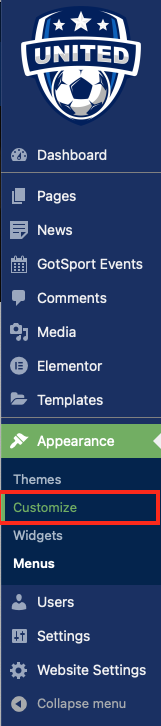
- From the ‘Appearance‘ menu on the left-hand side of the Dashboard, select the ‘Customize‘ option to bring up the Active Theme Customization Dashboard.
- Click on ‘Main Theme Settings’
- Scroll down until you see ‘Fallback Hero Image‘. Here is where you can add/update your News/Posts’ header image