This article only shows you how to change the color of your Main Menu (Menubar).
- If you would like to organize your Menu(s) with different links, please check out this article: Menu – Structure
Changing your Main Menu's color
There are two ways to update the colors of your Main Menu (Menubar):

Change Color via Main Theme’s Primary Colors
By default, the main menu colors pull from your Main Theme’s Primary and Secondary Color. You can easily change your theme’s primary and secondary color but this will effect the colors for your whole website. If you wish to change only your Main Menu color it is recommended to do so via Customize – Menubar Settings.
How to change your Main Menu (Menubar) colors via Theme’s Primary Colors
- Log in to the Website’s Dashboard.
- Click on the ‘Appearance‘ menu on the left-hand side of the Dashboard, select the ‘Customize‘ option to bring up the Active Theme Customization Dashboard.
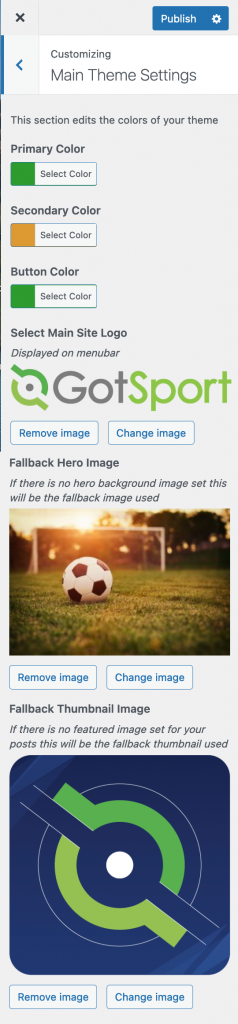
- Click on ‘Main Theme Settings’
- From here, you can view/edit your theme’s color. By default your menu bar will be the same color as your Primary color and the links or accent color will be the Secondary Color. Please note: changing these colors could effect other parts of your website
Do not forget to click ‘Publish‘ at the top of the left column when you make any changes.


You might need to upgrade your club website package to access the Menubar Settings. To learn more about the different packages we offer, CLICK HERE
Change Color via Menubar Settings
By default, the main menu colors pull from your Main Theme’s Primary and Secondary Color. The good news is you can easily change your Main Menu (menubar) colors without adjusting your primary colors (which effects your whole website) via ‘Menubar Settings’.
How to change your Main Menu (Menubar) colors via Menubar Settings
- Log in to the Website’s Dashboard.
- Click on the ‘Appearance‘ menu on the left-hand side of the Dashboard, select the ‘Customize‘ option to bring up the Active Theme Customization Dashboard.
- Click on ‘Menubar Settings’.
- From here, We will be focusing on these six items:
Click HERE to see what all settings do in this section- Menubar color
- Menubar highlight color
- Menu link color
- Menu active color
- Menu dropdown background color
- Menu dropdown link color
Do not forget to click ‘Publish‘ at the top of the left column when you make any changes.


Menubar Color:
- Under ‘Menubar Color‘ click on ‘Select Color‘
- Choose Your Color
- Click on Publish to Save
If you would like to revert to your default settings (primary colors), select clear.


Menubar highlight Color:
This color is only used with Menu Style 2 & Menu Style 3
- Under ‘Menubar Highlight Color‘ click on ‘Select Color‘
- Choose Your Color
- Click on Publish to Save
If you would like to revert to your default settings (primary colors), select clear.


Menu link color:
- Under ‘Menubar Color‘ click on ‘Select Color‘
- Choose Your Color
- Click on Publish to Save
If you would like to revert to your default settings (primary colors), select clear.
Tip: In the example, ‘Homepage’ did not change color because that is the current (active) page the user is on. If you want the active page link to change colors, you can change it via ‘Menu active color’


Menu active color:
- Under ‘Menu active color‘ click on ‘Select Color‘
- Choose Your Color
- Click on Publish to Save
If you would like to revert to your default settings (primary colors), select clear.
Tip: In the example, only “Homepage’ is green because that is the current (active) page the user is on. If you want the other menu links to be a different color, you can change it via ‘Menu link Color’


Menu dropdown background color:
- Under ‘Menu dropdown background color‘ click on ‘Select Color‘
- Choose Your Color
- Click on Publish to Save
If you would like to revert to your default settings, select the color white.


Menu dropdown link color:
- Under ‘Menu dropdown link color‘ click on ‘Select Color‘
- Choose Your Color
- Click on Publish to Save
If you would like to revert to your default settings, select the color black.


Click HERE to see what all settings do in the ‘Menubar Settings’ section